How to Accept ZAR Payments in WooCommerce (Free Edition) — What South Africans Actually Need to Know
So you’ve set up WooCommerce. You’re ready to sell. And then you notice that WooCommerce, by default, assumes the entire world wants to pay via PayPal.
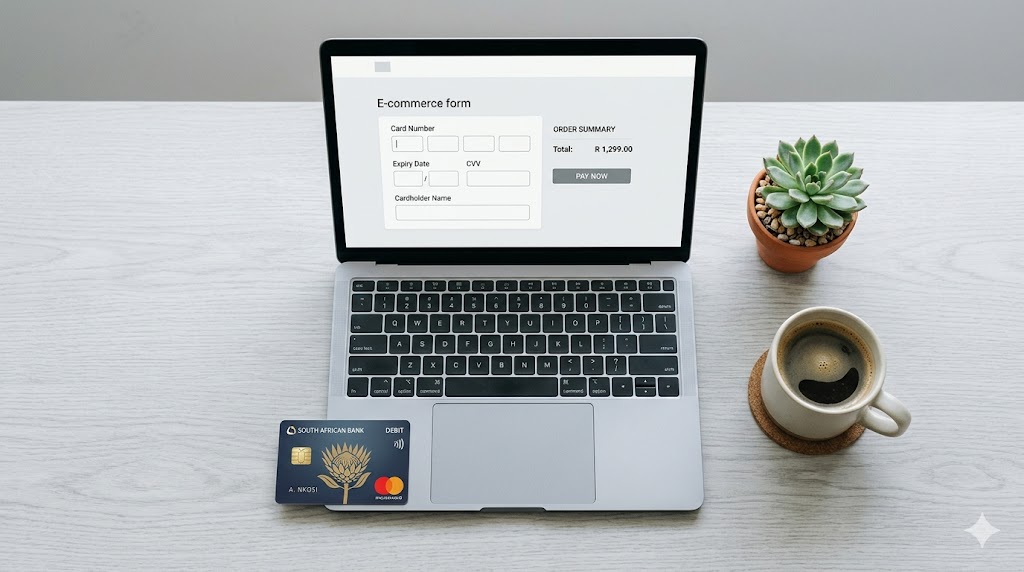
For most South Africans, that’s a problem. We pay in Rands. Our customers pay in Rands. PayPal is not the vibe.
Here’s what you need to know — written by someone who took the journey so you don’t have to wade through the same mountain of corporate non-answers.
The Short Version
There is a Yoco plugin for WooCommerce. It works. It’s free. It lets your South African customers pay in ZAR using their cards. Most SA developers know about it. Most SA business owners who manage their own sites do not — and the documentation from all three parties (WooCommerce, PayPal, and Yoco) is written for senior developers who apparently don’t need sleep or plain English.
This post is for everyone else.
The Setup (It’s Actually Not That Bad)
1. Install WooCommerce as normal
2. During setup, activate the Yoco plugin — it’s available in the WooCommerce plugin library
3. Get your API keys from Yoco — log into your Yoco account and grab them. There are two: one for Test mode and one for Production (live payments)
4. Start in Test mode — don’t go live until you’ve confirmed everything works
5. Add your API keys in the Yoco plugin settings and save the page — saving activates them
That’s the setup done. Go test a payment.
Now Here’s the Part Nobody Tells You
Your WooCommerce product page shows a large, prominent PayPal Express Checkout button. It’s hard to miss. It is, in fact, nearly impossible to miss.
The Yoco payment option is also there. It is not hard to miss — it is completely invisible until the customer is deep into the checkout flow. WooCommerce doesn’t flag it. PayPal isn’t going to point it out. Yoco’s documentation assumes you already know where it lives.
You don’t. So here it is:
The correct checkout flow for ZAR payments is:
1. Add to Cart
2. View Cart
3. Proceed to Checkout
4. At checkout, scroll down — the Yoco payment gateway selector is there, below the fold
5. Select Yoco, complete the payment
Yes, it feels like it’s hiding. It is, a little. But it works, and once your customers know the flow, it’s perfectly fine. The Add to Cart path works the same way for everyone — including PayPal users — so it’s not as clunky as it first appears.
The One Thing You Must Tell Your Customers
Do not click the big PayPal Express Checkout button if they want to pay in ZAR.
That button bypasses the checkout flow entirely and goes straight to PayPal. No Yoco. No ZAR. Just PayPal doing what PayPal does.
Add a line to your product pages. Put it near the button. Something like: “South African customers — click Add to Cart to pay by card in ZAR.” Simple, clear, problem solved.
Do You Need a Yoco Account?
Yes. If you don’t have one, go get one — yoco.com It’s straightforward to set up and genuinely makes card payments in South Africa much easier to manage. Once you have an account, the API keys are right there in your dashboard. And no – I don’t get commission from them
The Bottom Line
WooCommerce, PayPal, and Yoco are all decent products. Their documentation will tell you, at length, how user-focused they are. What they won’t tell you is that they wrote that documentation for someone with three monitors and a computer science degree.
The setup is simple. The gotcha is the hidden checkout flow. Now you know where it is.
Go sell something.
Posted by Beachy Studio · beachy.co.za